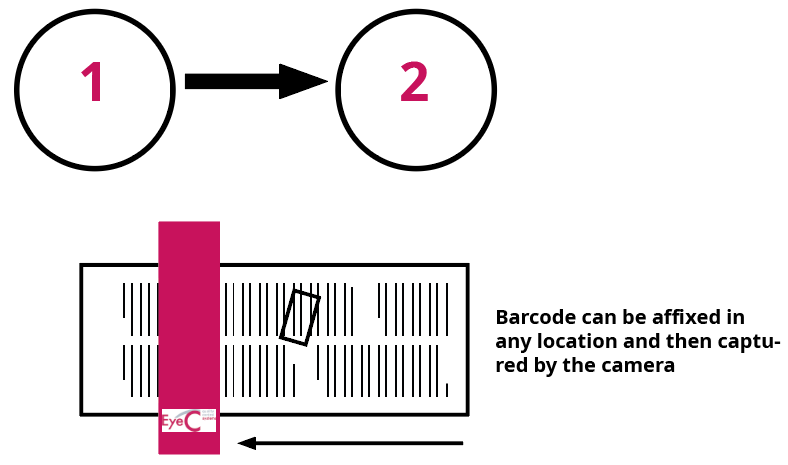
When the end of a print roll is reached, perform the following steps.
Figure 1. Workflow for working with the Quality Link system (Web
inspection)
Even when the machine is running, attach the barcode or marking and allow it to
be captured by the camera.
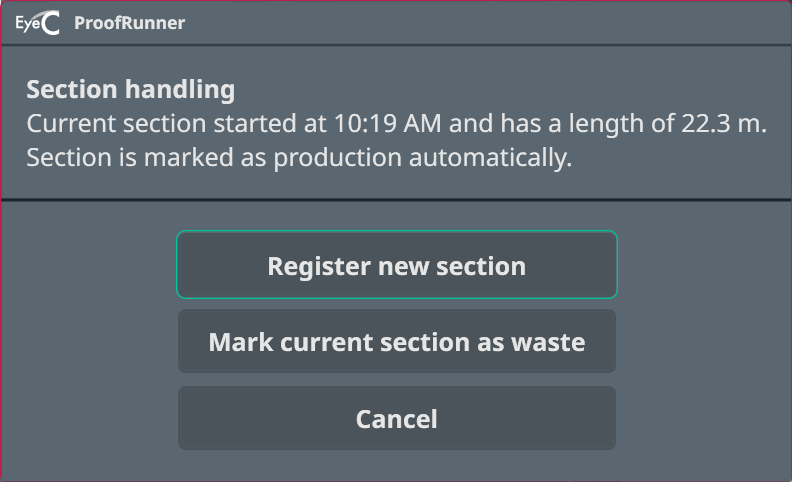
Click the Register New Section button.
The following dialog field appears:
Figure 2. Dialog box for saving a section
Select Register New Section. The data of the inspection is then saved in
the database.
The following dialog box appears:
Figure 3. Reminder to read the barcode
Read the barcode or input it.
If a barcode already exists in the Quality Link database, the following
error message appears in the manual mode described in this section. In this
case, you must enter a new code.
Change the roll and start the print and update the inspection.
By saving a section or by exiting the EyeC ProofRunner
software, the data is saved in a database. The data can be called up at any time, for
example, to be evaluated with the Quality Manager by a qualified person.

 The following dialog field appears: