
Starting the Finishing Manager workflow for Web inspection
With the Finishing Manager, you can now start further processing of the print rolls.
-
Run the roll with the barcode to the right position.
You see the following start screen.
NOTICE 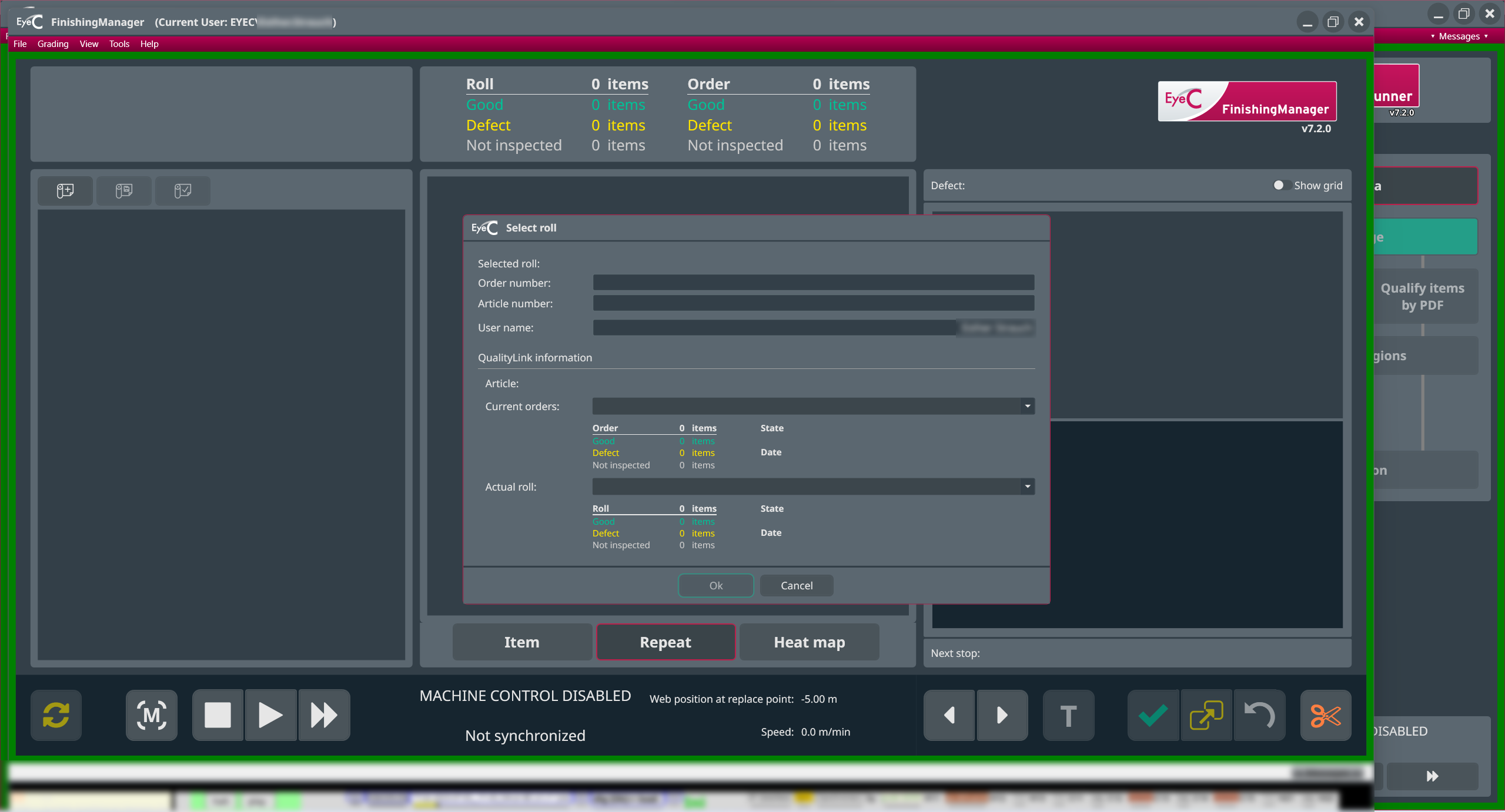
Figure 1. Finishing Manager - start screen -
The Finishing Manager prompts you to read in the barcode on the roll or
to enter it manually.
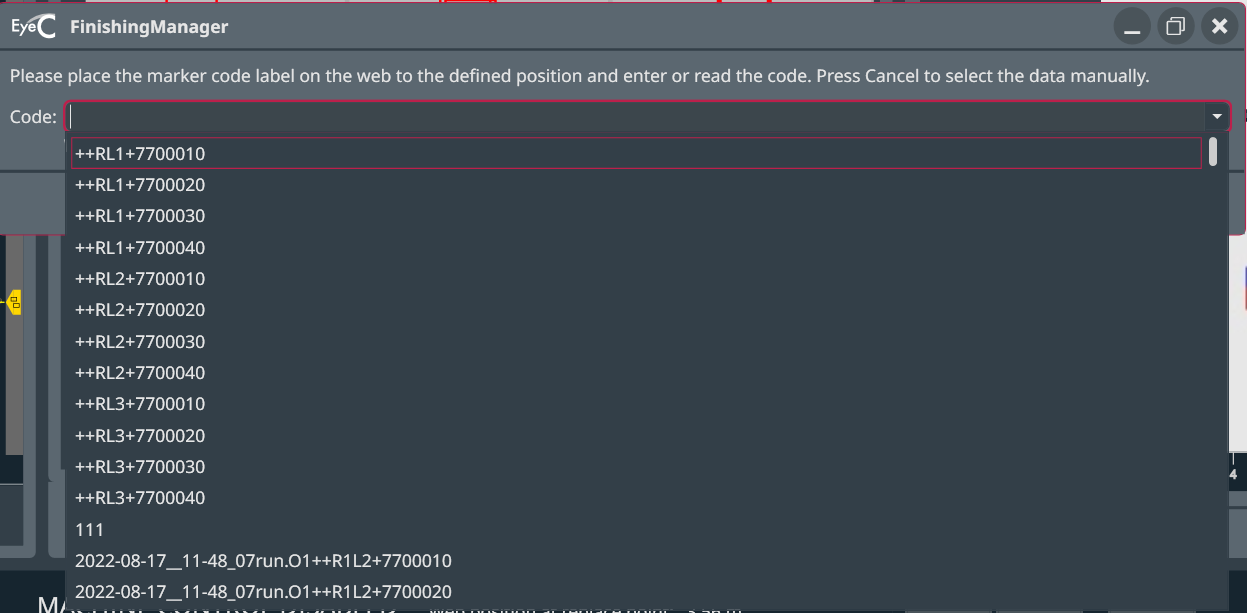
Figure 2. Start dialog field in detail -
Scan in the barcode or input the value.
The Finishing Manager loads the necessary data from the Quality Link database, displaying the data to the respective job, and automatically loads the exactly defined roll by the barcode.
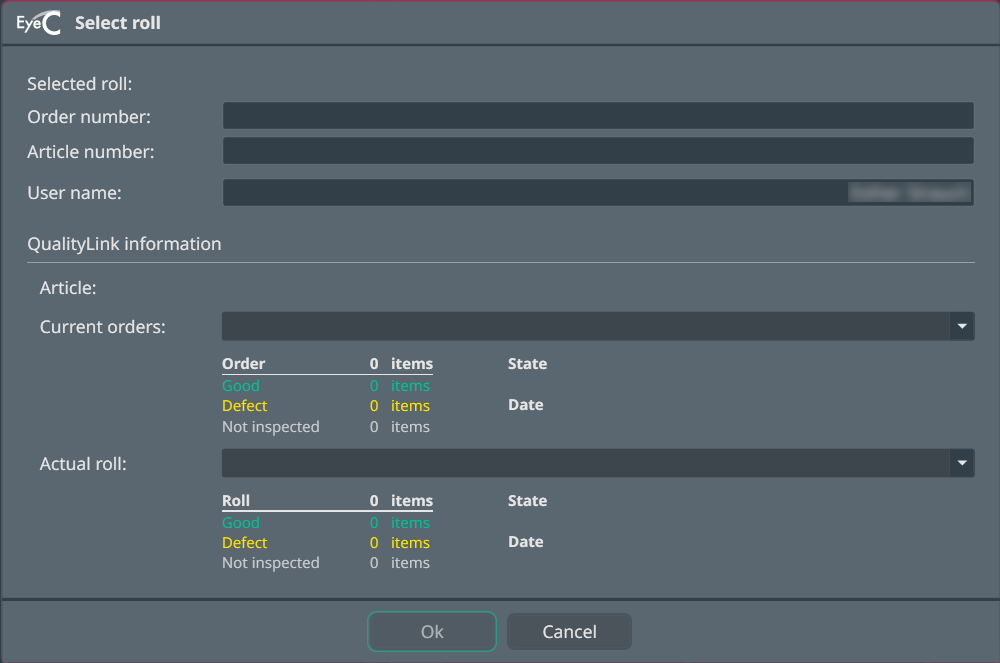
Figure 3. Details of the roll to be processed You again see an overview of the order data and the print roll data.
The screen displays the following overview.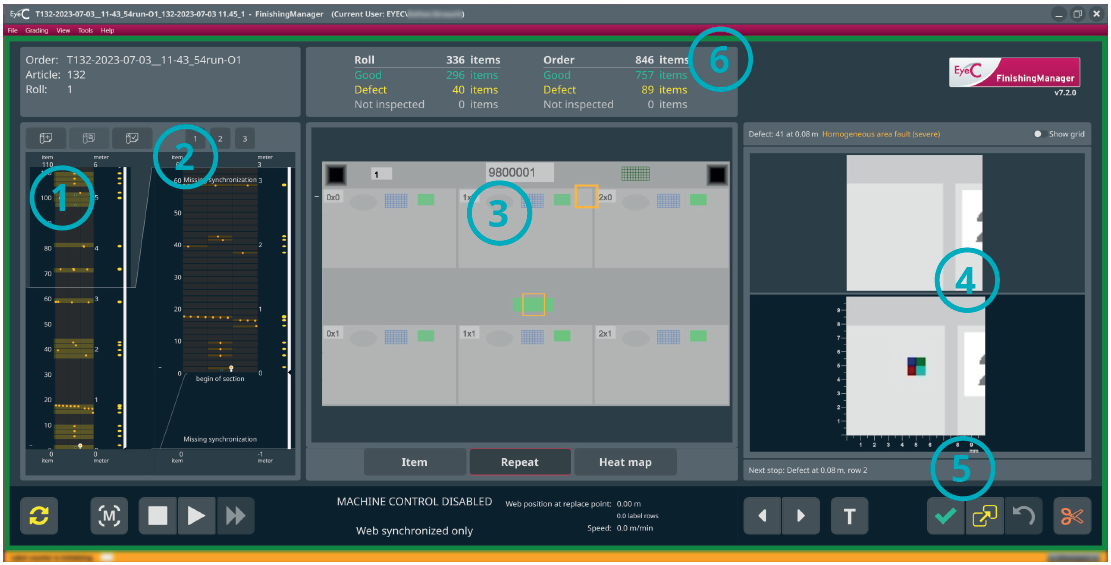
Table 1. Finishing Manager overview Number Description 1 Complete overview of the roll. 2 Detailed overview of the roll. You can zoom in and out with the mouse wheel. 3 View of the ups. 4 Detailed view of defective areas. 5 Tools for qualifying, verifying, and for machine control. 6 Statistics: here you see the values for the total number of labels, the proportion of good and bad labels for both the roll and the entire job. In addition, you find an overview of the job data. Figure 4. Finishing Manager - overview In the detailed overview of the roll, you find all suspicious areas, just like in the Quality Manager. Areas evaluated as “good” are shown in green and areas evaluated as “bad” that must be replaced are shown in orange. In the detailed view, you can also see the replacement position of the rewinder (A) and the cut position for waste areas (B):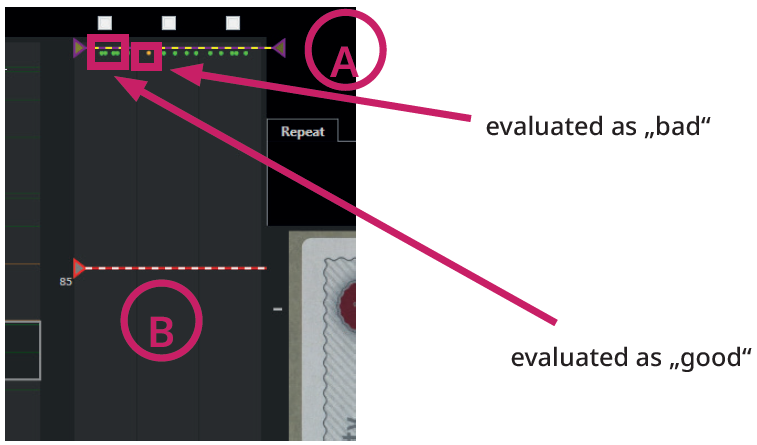
Figure 5. Detailed view of the print roll For details on the buttons to control the Finishing Manager, see Finishing Manager buttons.
WARNING 
Figure 6. Machine in motion. USE CAUTION! 
Figure 7. Machine is standing still. Now possible to work safely!