
Reporting
Options for creating reports
This chapter explains the reporting feature of EyeC ProofRunner and how to use the functions on the report view. EyeC recommends creating a report after completing the inspection and grading all suspicious areas. Additionally, the EyeC ProofRunner software allows the user to create interim reports at any time during inspection and/or after user-defined sections (for example, pallet change).
-
To stop the inspection and create a report, click the Report button.

→ A dialog appears offering 4 options to proceed.
-
With Stop + go to report the user stops the inspection and a report is created.
→ The EyeC ProofRunner changes to the report view.
-
With Stop, the inspection is stopped but no report is created.
→ The EyeC ProofRunner software stays on the inspection screen.
-
To cancel the action, the user can click Cancel.
→ The inspection is continued and the EyeC ProofRunner software stays on the inspection screen.
-
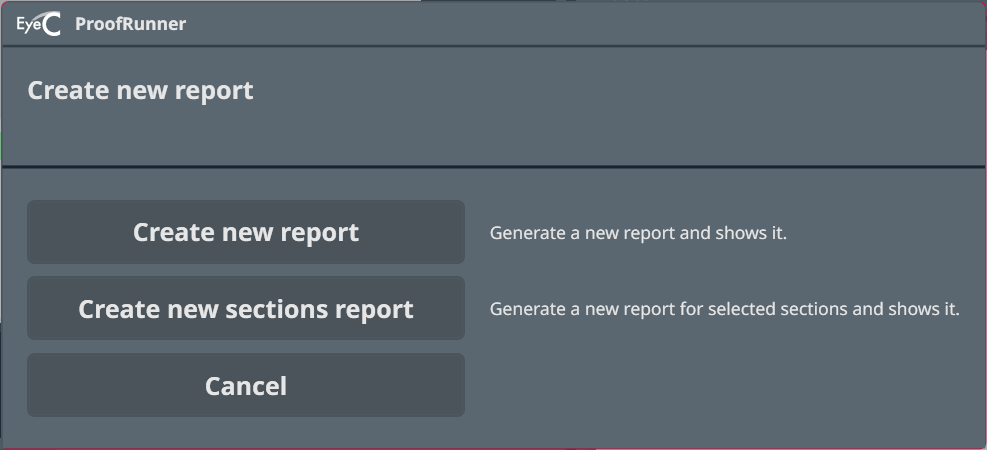
If the creation of interim reports is activated in the report settings (see EyeC ProofRunner Web System Manual), you can click Create interim report to open the interim report dialog.
→ During and after the creation of interim reports the inspection is not stopped.
-
By clicking on Create new report the user creates a new report of the inspection from the beginning until the actual state.
→ The EyeC ProofRunner changes to the report view.
-
Create new sections report generates a new report for all defined sections. Section changes can be defined during inspection using the Sections button.

Configuring report settings
The EyeC ProofRunner allows you to adjust general report settings and the content of the inspection reports.
See EyeC ProofRunner Web System Manual.