
EyeC’s AI-based defect classification
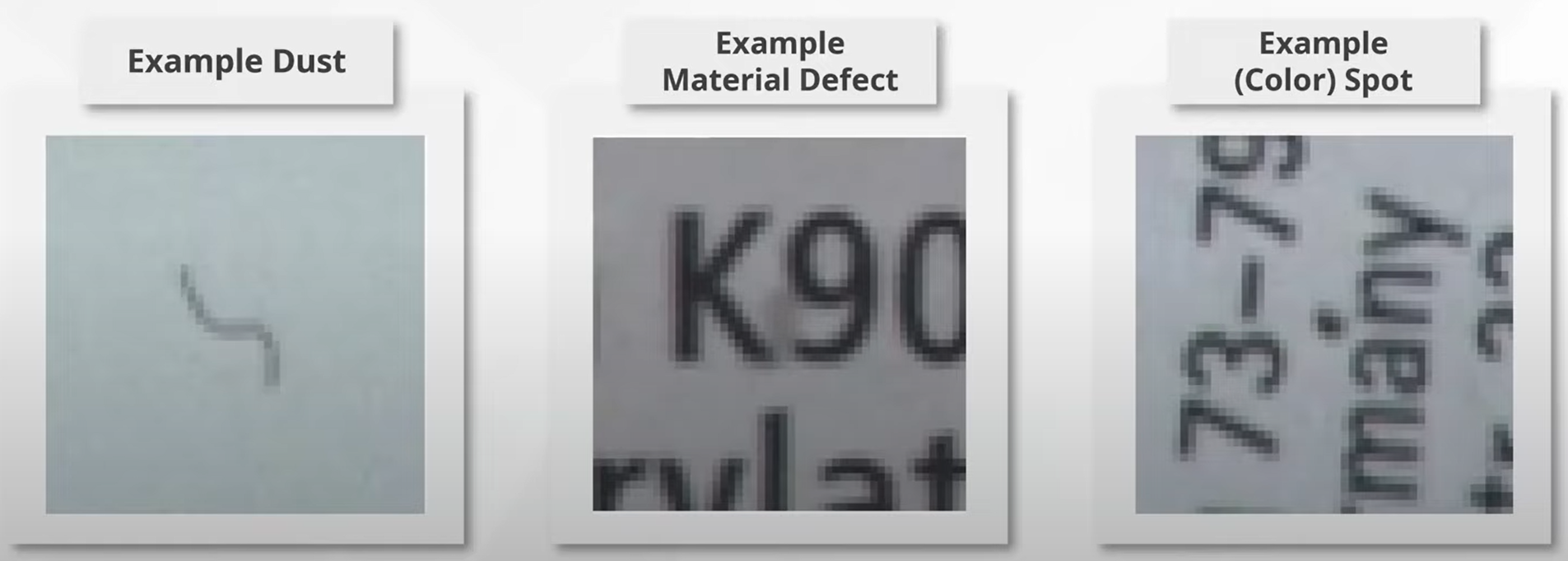
Artifical intelligence (AI)-supported defect classification in the EyeC ProofRunner detects and isolates causes of defects more precisely, as can be seen in the following example.
Inspection parameter set
Audience: QC Manager
Once activated, in the inspection parameter set (open via Inspection settings > Inspection parameter set), you can adapt the settings to differentiate between defects that are relevant and irrelevant for the end customer or for your quality goals.
The settings made in the Inspection parameter set define the filter options you have in the Gallery view during the inspection process.
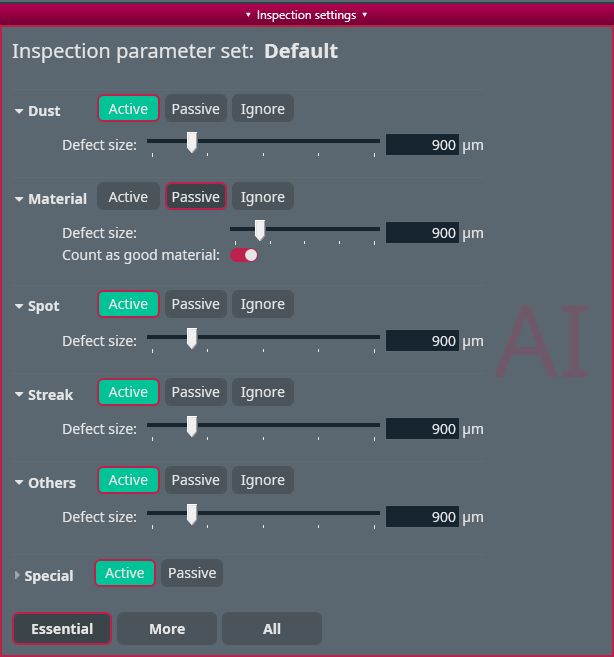
You can assign each defect class to a Active, Passive, or Ignore state and adapt the defect size with a slider.
Active state:
-
Captures defects.
-
Rises an alarm for the Operator.
-
Triggers a machine action, if configurated; for example, stop signal to the Rewinder.
-
Saves data to a database (Quality Link).
-
Prints details in the report.
-
Switches between Live image and Flawed repeat view during inspection.
Passive state captures the defect “silently”:
-
Does not rise an alarm when defect appears, therefore Operator has more time for the tasks.
-
Does not trigger a machine action.
-
Saves data to a database (Quality Link).
-
Prints details in the report.
-
NO switch between Live image and Flawed repeat view during inspection.
-
Defects can automatically be marked as good material (see following figure) so that they also appear as good in the statistics and thereby reduce the waste. Findings are not discarded, as they are in Ignore mode, but can be shown in the EyeC ProofRunner report, are saved in the Quality Link database, and can be reviewed during post-press processing in the Quality Manager, if necessary.
Ignore state discards the defects.

For more information on the automatic evaluation of multiple defects, see Evaluating inspection results with the Quality Manager.