
Navigating through the manual inspection in iX mode
| NOTICE | |
|---|---|
-
For navigating through the inspection, use the buttons on the right side of the
screen.
See (1) in the following figure.
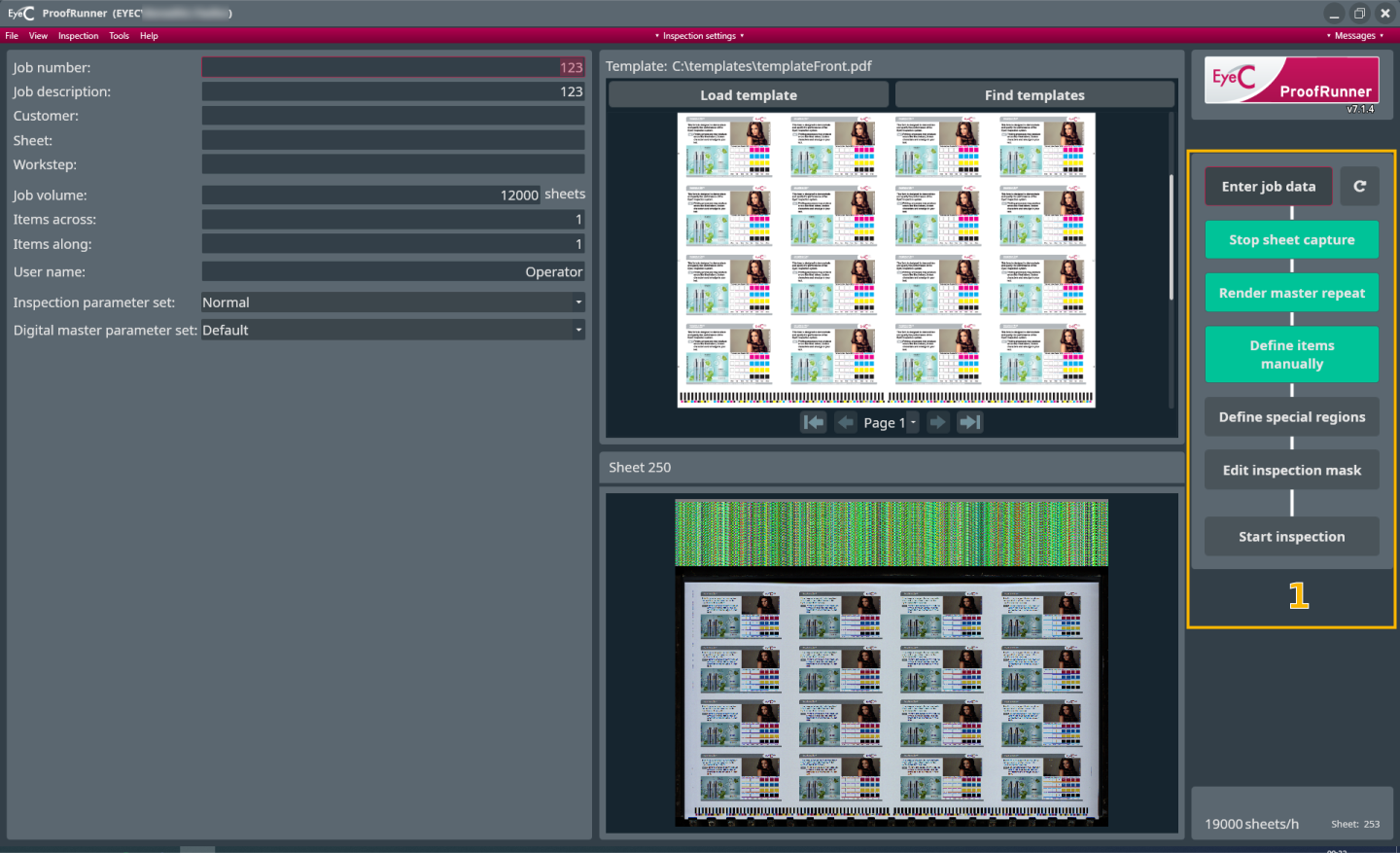
Figure 1. Select master sheet -
During inspection, the EyeC ProofRunner compares the printed
sheets with a reference sheet that has been approved as correct by the
Operator. This reference sheet must be created out of the prepress
PDF. The EyeC ProofRunner system works in either workflow 1 or
workflow 2:
- 1) In an automatic workflow the job data is automatically transferred from the printing machine and the reference PDF is created automatically.
- 2) The reference PDF is created manually by clicking on the Render
master repeat button.

The rendered reference image is displayed.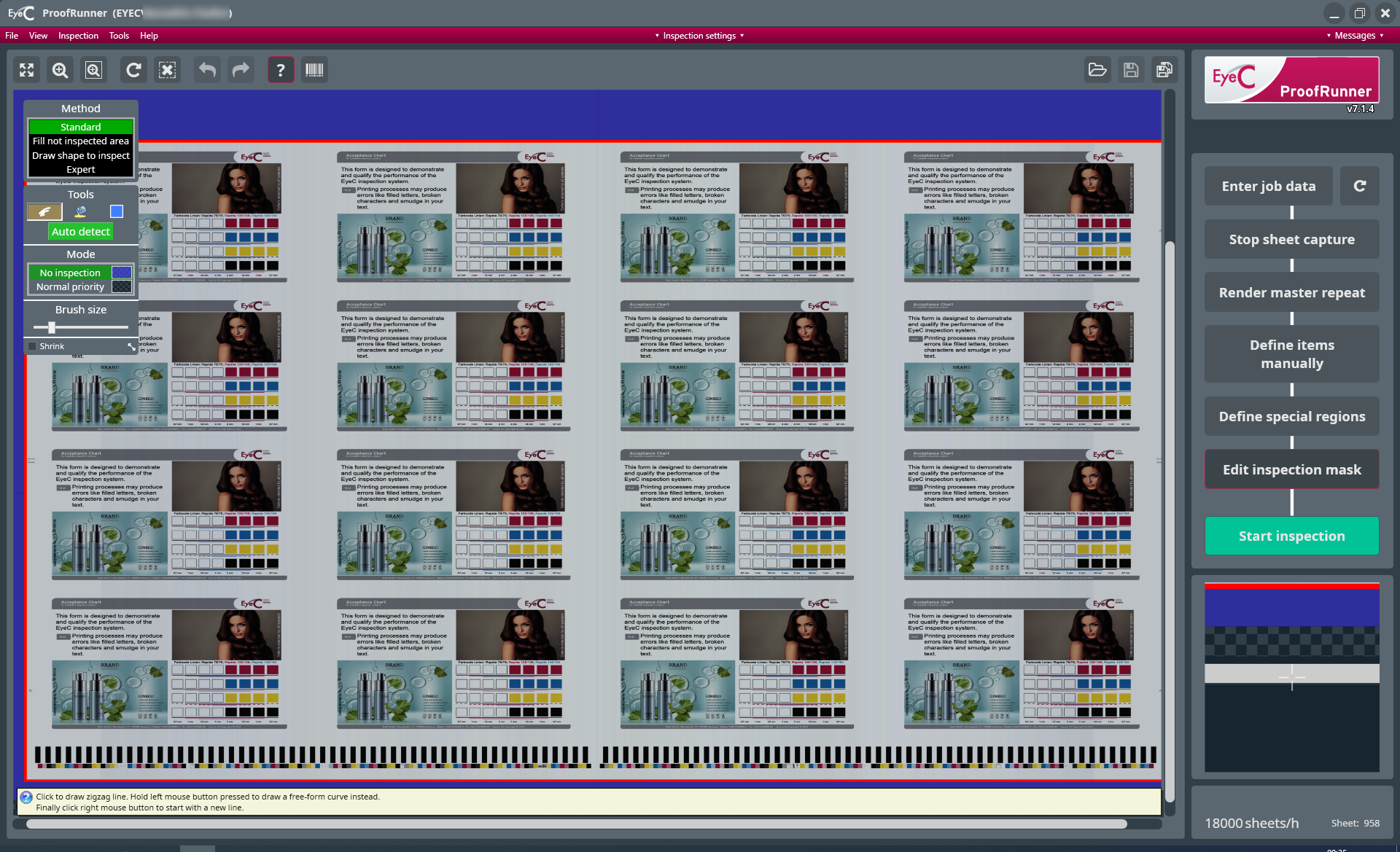
Figure 2. ProofRunner Sheetfed iX reference sheet with items -
Start the inspection by clicking the Start inspection button.
