
Starting the software and entering job data
| NOTICE | |
|---|---|
-
To start the EyeC ProofRunner software, double-click the EyeC ProofRunner
icon on your desktop.
The following screen is displayed:
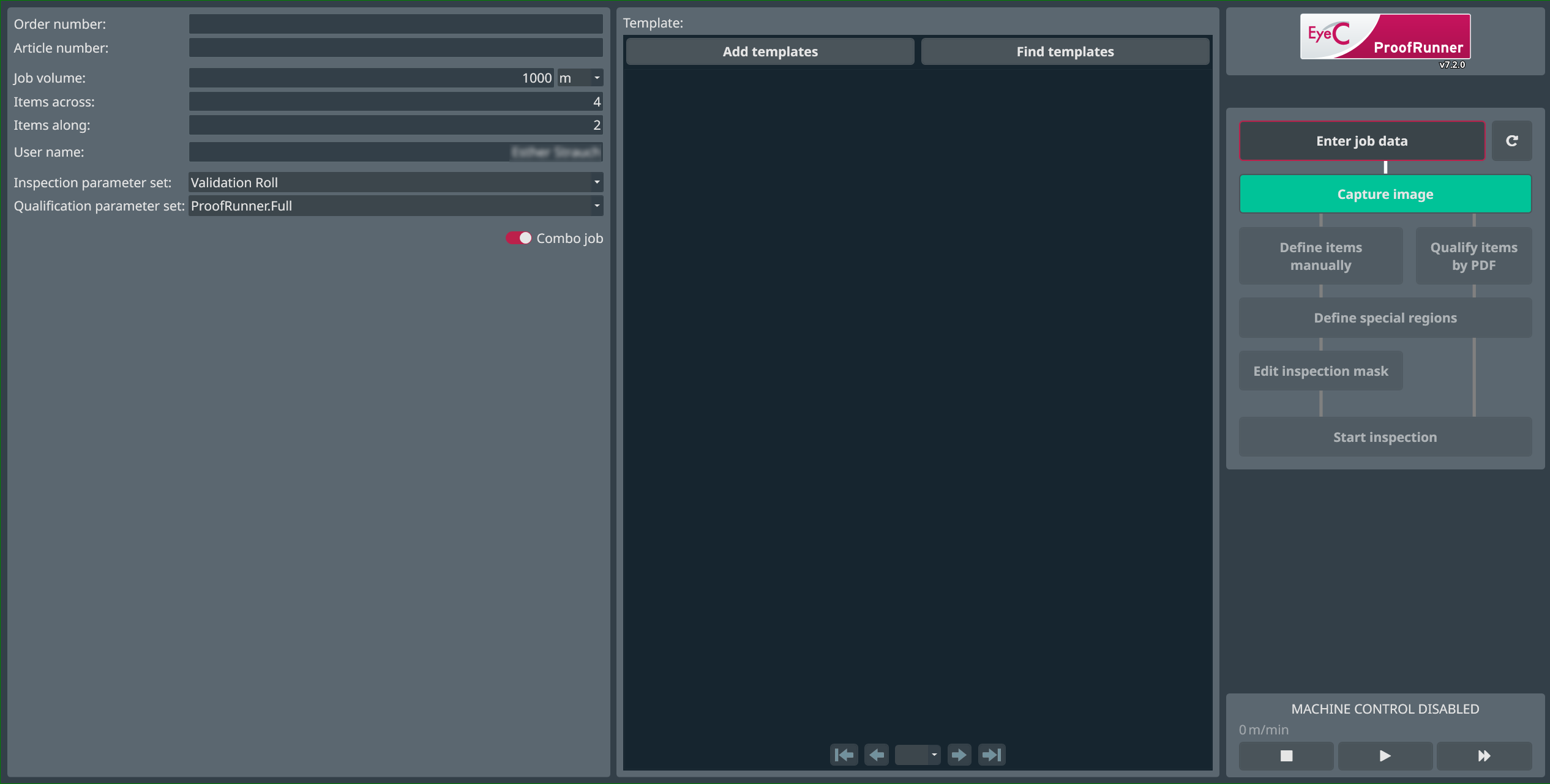
Figure 1. Job setup screen. The job set-up screen requires you to enter important parameters (Job data) for the inspection. The fields to the left of the screen correspond to job parameters.
EyeC ProofRunner allows you to use and maintain a variety of different parameter sets to reflect individual quality standards for different applications. This helps you save time by loading the parameter settings made for a particular job.