Having corresponding features activated, the EyeC ProofRunner can read and decode
barcodes and variable text elements and check ΔE regions for color deviations. The software also enables you to
measure
distances.
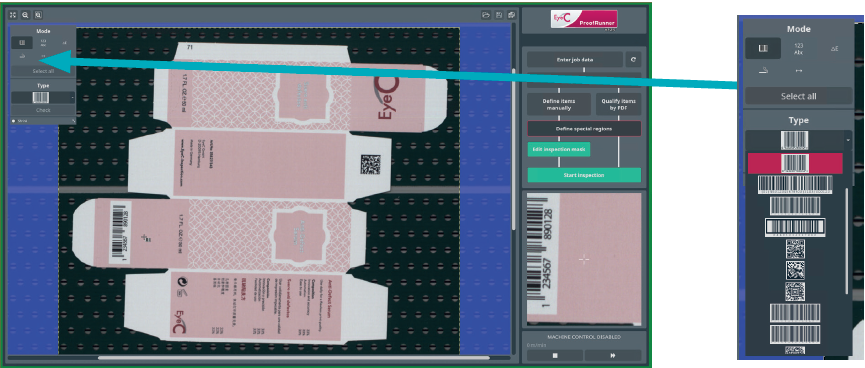
Click the button Define special regions to define
special regions like barcodes, variable text elements, regions with defects,
ΔE regions, or distance
measurement.
See following figure. Figure 1. Job setup screen - Define special regionsThe dialog and editing tool Regions is displayed on the left side
of the screen.
The buttons in the upper part of the toolbox are for selecting the type of
special regions you want to define:
Barcodes
Regions of variable text
Regions with defects
ΔE inspected regions
Distance measurement
To define a special region, select the type of special region you want to
define by clicking on the corresponding symbol in the upper part of the
Regions dialog.
The mouse arrow changes to a marking cross.
Define the special region by clicking into one corner of the region you want to
select, holding and dragging a square around the region.
When having defined a special region as barcode or variable text
element, the decoded text or numbers are displayed next to it.
For ΔE
inspected regions the selected threshold value is
displayed.
To delete a special area, right-click its marking square and select
Delete.