
Acquisitioning the customer proof
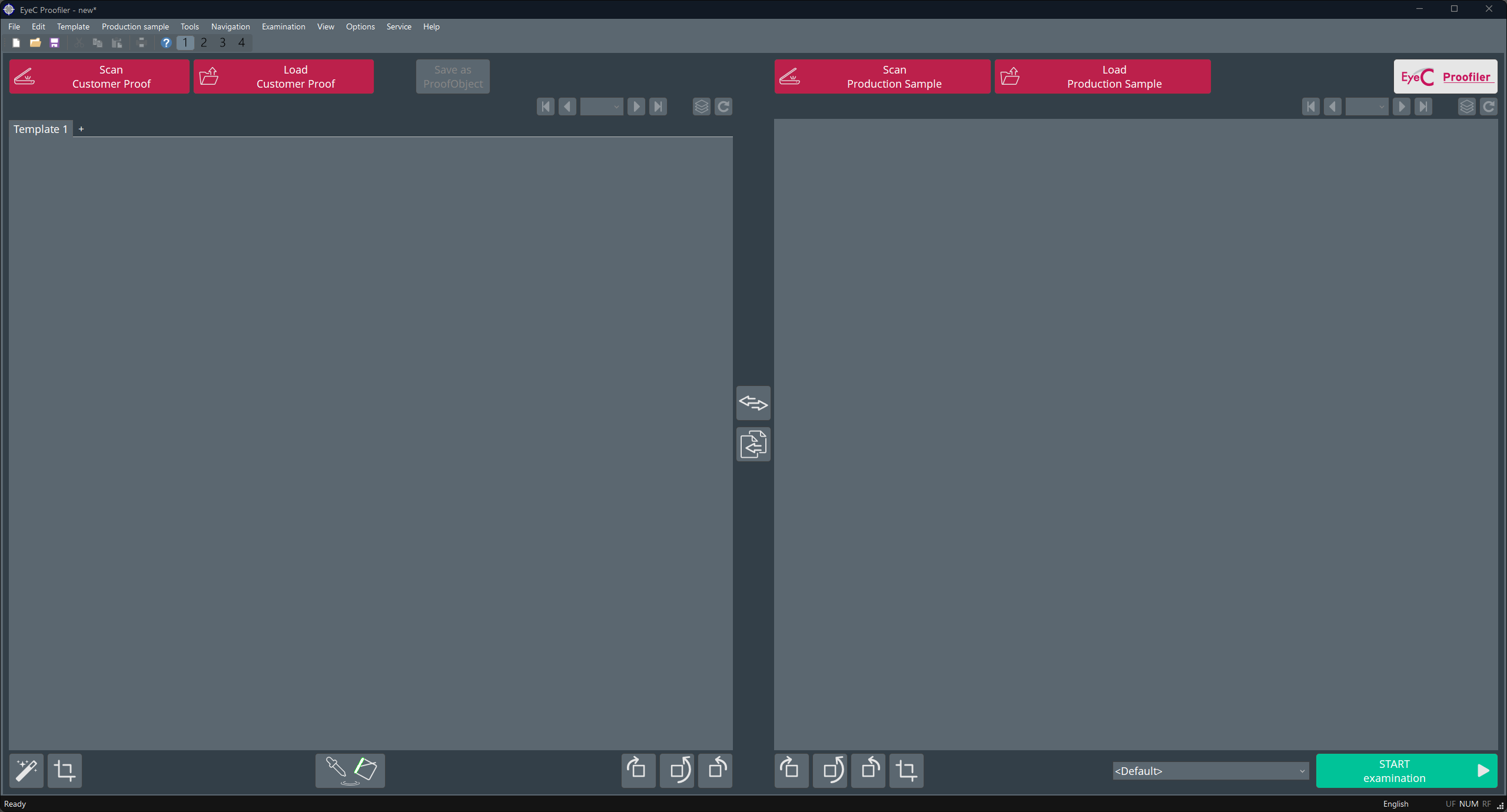
The EyeC Proofiler software starts with the Acquisition screen. This mode offers a variety of functions needed to obtain all image data required for the inspection process, including a Customer proof (template) and a Production sample. In some cases, depending on the configuration of EyeC Proofiler, a dialog is displayed on the upper side of the acquisition screen where the type of examination for the following inspection process is selected.
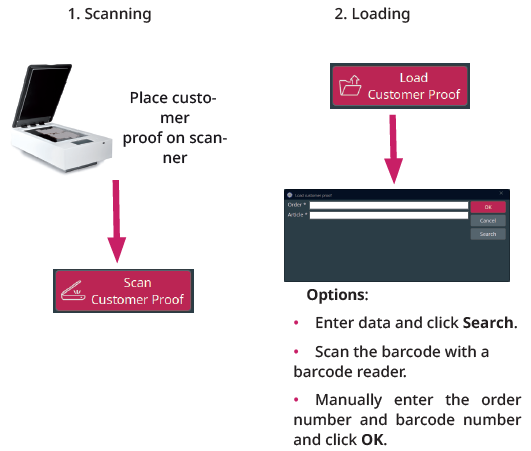
- Scan the customer proof:
-
Place the customer proof on the scanner.
-
If the scanner has a lid, close the lid.
-
Click on Scan Customer Proof in the upper-left corner of the screen.
-
- Load an electronic proof (PDF file or retain sample):
-
Click on Load Customer Proof in the upper part of the screen.
→ The dialog Load Customer Proof appears.
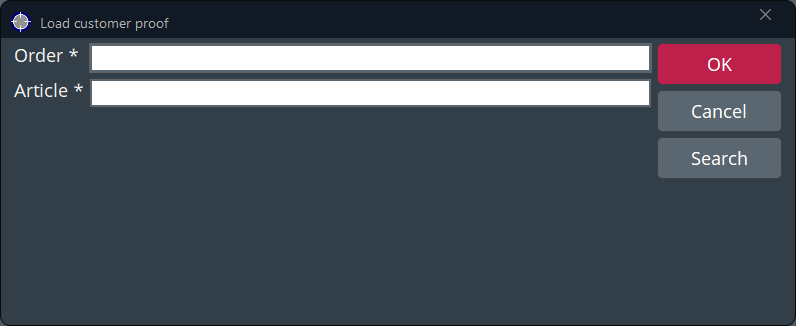
Figure 3. Load customer proof dialog - Enter the order number and the article number and press OK to retrieve your electronic proof.
- Alternatively, to select a proof in the file directory, click on Search.
- Alternatively, scan the barcode with a barcode reader.
-