
Generating a report
Once the inspection is completed and all suspicious areas have been classified, you can generate a report.
-
Click on Report.
 A report is displayed as shown in the following figures:1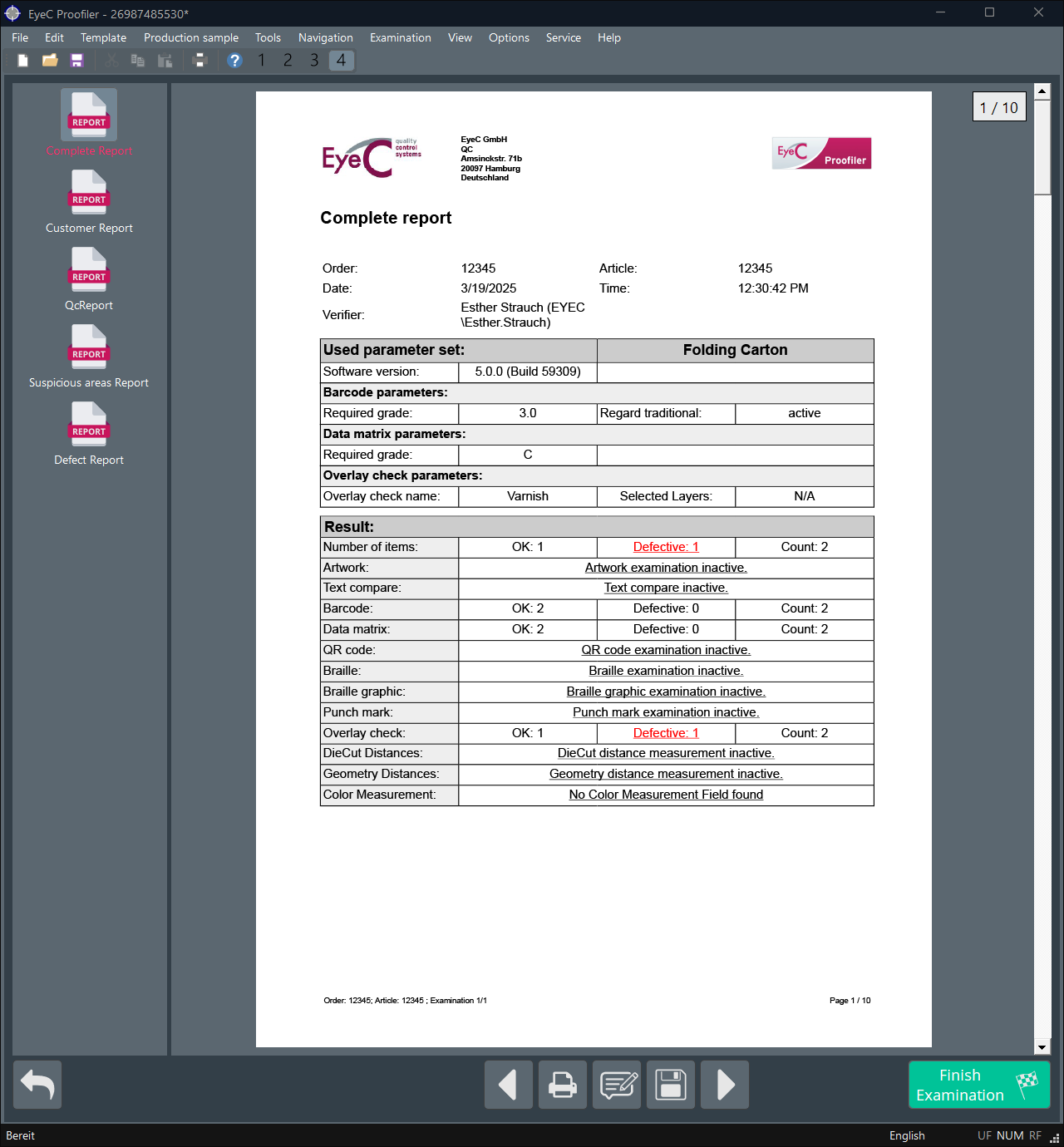
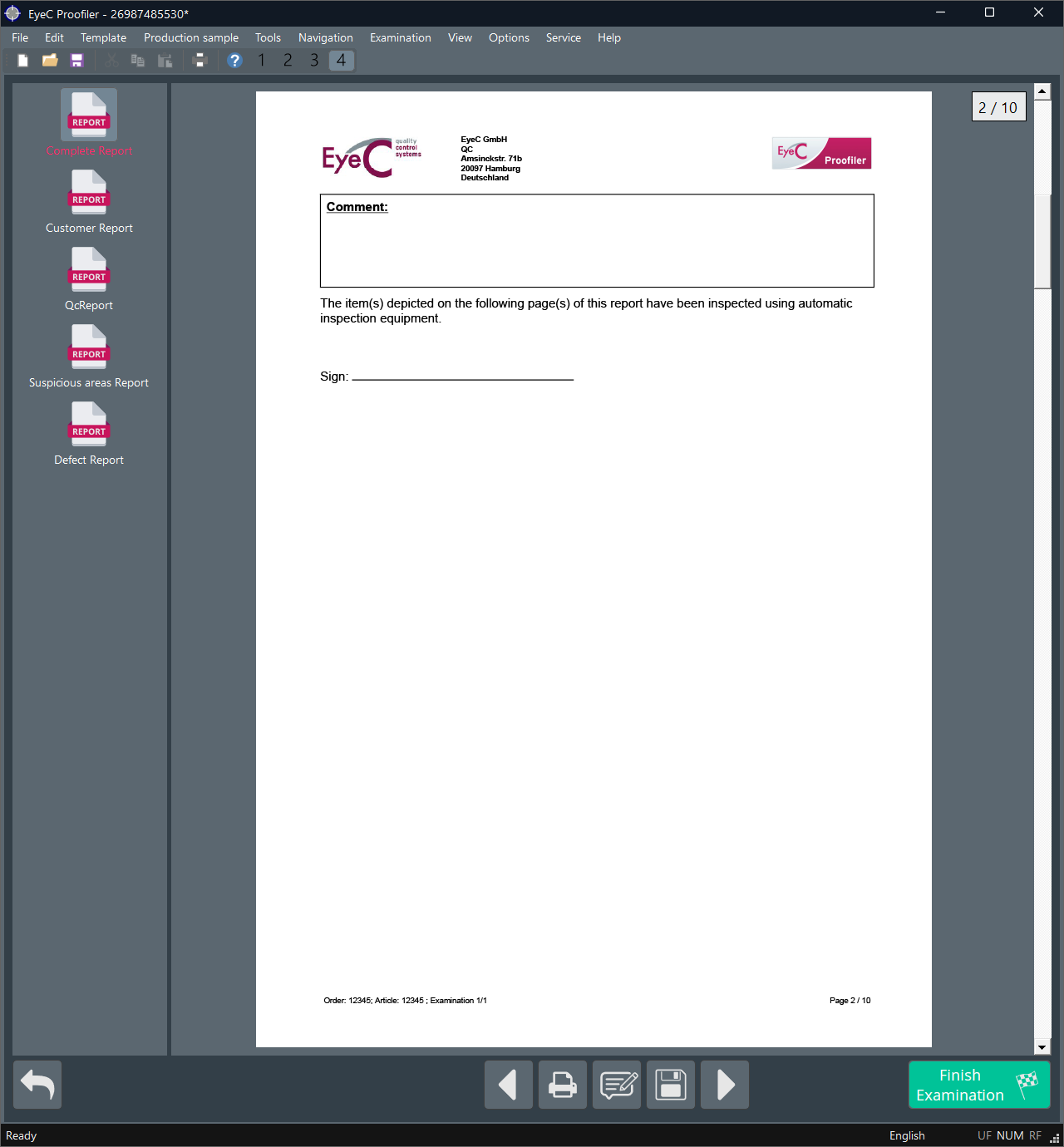
Figure 1. Report view - first and second page -
To finish the inspection, click on Finish Examination in the
bottom-right corner of the screen.
 The report is saved automatically and a new examination is started. EyeC Proofiler switches to the acquisition screen and a new proof and production sample can be acquired.
 -
If you need to inspect more samples in the current job, click on Followup
examination visible in the bottom-right corner of the screen.
1 If you use
a EyeC Proofiler with integrated Independent Reviewer Workflow: no
report is shown in the EyeC Proofiler software. The button is named
Finish and sign examination. The evaluation of inspection is
shown in the optional Review Station software where a reviewer can
accept or reject the evaluation of the operator.