
Job data
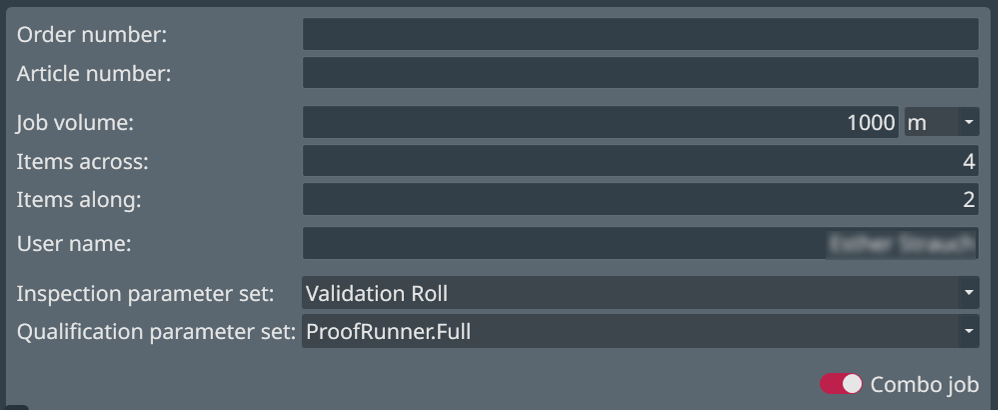
The job setup screen requires you to enter important parameters (Job data) for the inspection. The fields on the left of the screen correspond to job parameters.
| NOTICE | |
|---|---|
| Name | Description |
|---|---|
| Order number |
Customizable field name. Enter the order number for the job. |
| Article number |
Customizable field name. Enter the article number for the job. |
| Job volume | Enter the volume of the job in pieces. The units are by default in
metric dimensions. For changing this setting to imperial (see example in following figure) see EyeC ProofRunner System Manual.  |
| Items across | Enter the number of items across the width of 1 repeat (a) („5“ in
the example image below). Make sure to enter the right value, because
this is mandatory to ensure a correct inspection.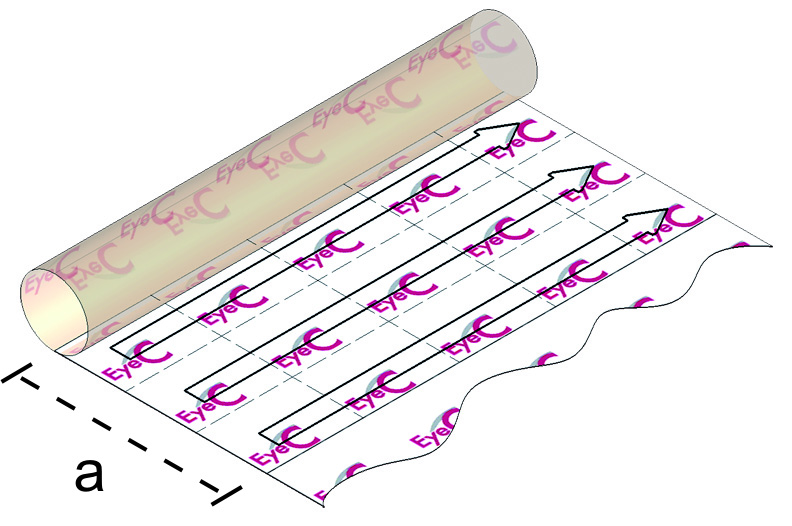 |
| Items along |
Enter the number of items in 1 row of 1 repeat (a) („3“ in the example image below). Make sure to enter the right value, because this is mandatory to ensure a correct inspection. 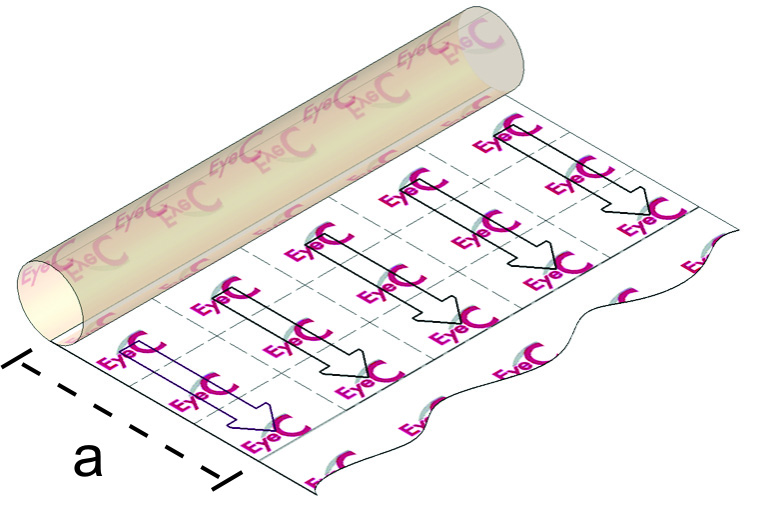 |
| User name | Enter your log-in name. This appears on the report. |
| Inspection parameter set | Select from a list of pre-defined parameter sets for different types of jobs. |
| Qualification parameter set | Select the parameter set for the PDF qualification (see Qualification). |