
Capturing a reference image
During the inspection, the EyeC ProofRunner compares the items on the web with a reference image which has been defined as correct by the Operator. This reference image must be captured from the web.
| NOTICE | |
|---|---|
-
Click the Capture image button to record a reference image.
 The captured reference image appears: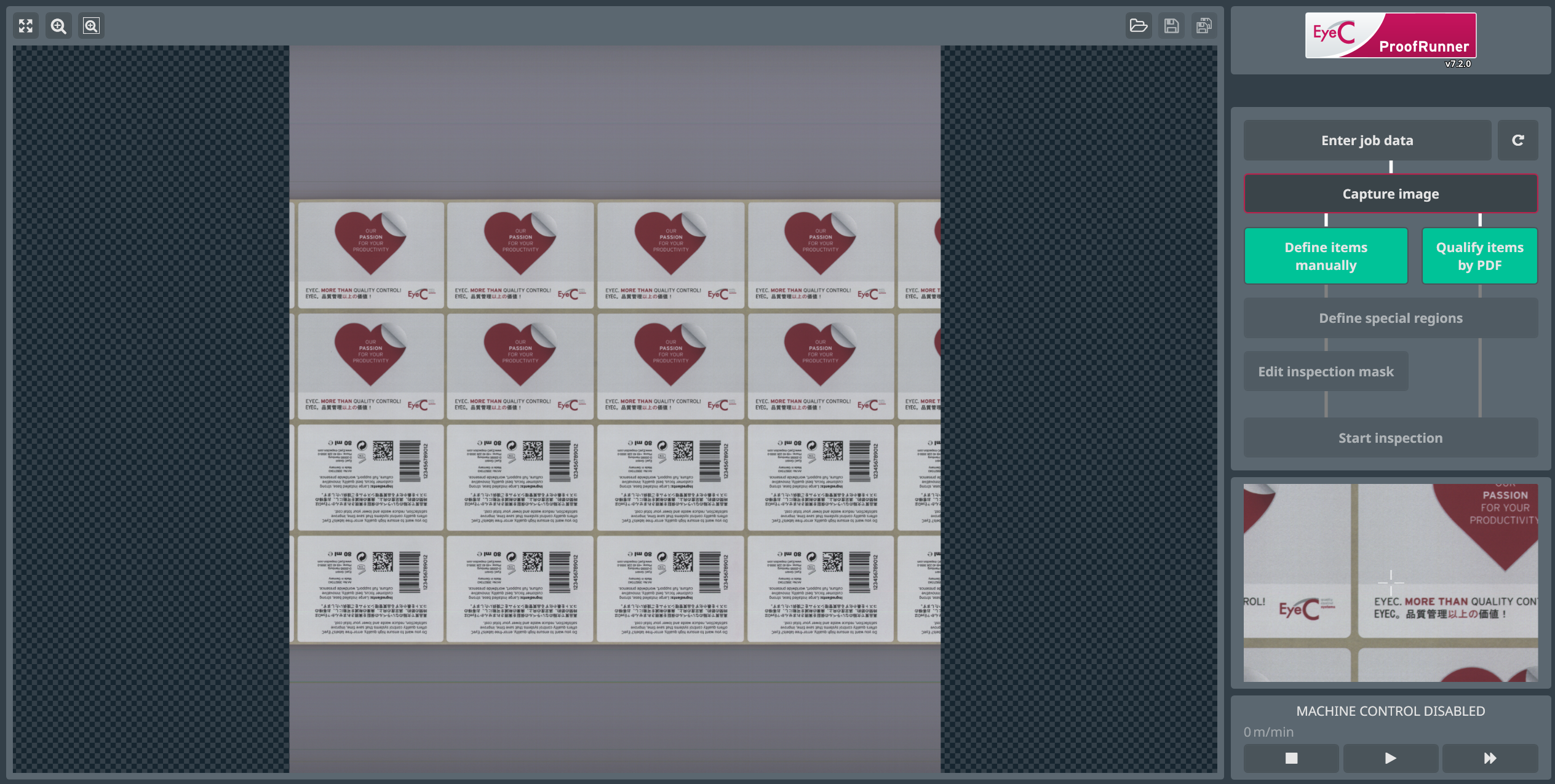
Figure 1. Job set-up screen - Capture image -
On the right side of the job set-up screen there is a small magnified view of
the area around your mouse cursor. To adjust the zoom factor of the magnifier,
use the slider below the magnifier window.
See following figure.
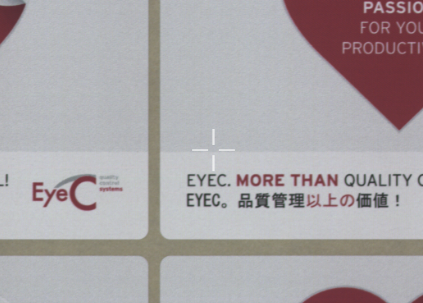
Figure 2. Job set-up screen - Magnifier Low web tension on the machine distorts the reference image.
If the reference image is distorted, click again on the Capture image button to restore the tension.