
Starting the QcStation

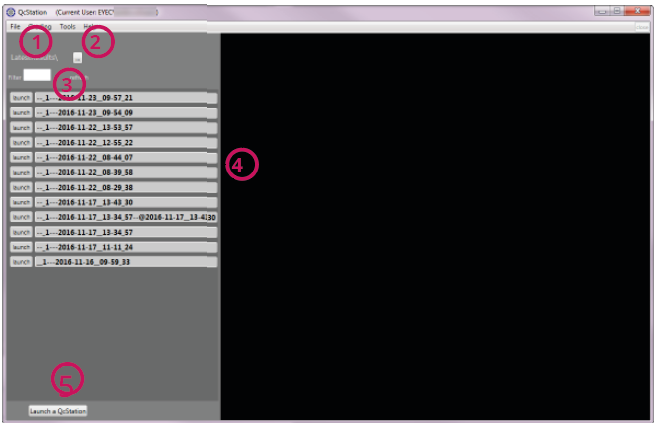
| Nr. | Name | Description |
|---|---|---|
| 1 | Monitored folder |
This folder is automatically monitored by the software. All new information in this folder is displayed under item (5) and can be directly chosen there. |
| 2 | Folder selection |
Enables you to determine which folder is monitored by the software. |
| 3 | Filter |
Filters the displayed list according to the criteria you enter in this text field. Example: Enter „11-22“ to view all files from November 22nd. |
| 4 | Inspection information |
Shows the last inspection files that are found in the monitored folder. You have 2 possibilities to open the QcStation with the corresponding file:
|
| 5 | Launch a QcStation button |
Starts a new instance of the QcStation. You also see the selection display here. |