
Acquisitioning the customer proof
The EyeC Proofiler software starts with the Acquisition screen. This mode offers a variety of functions needed to obtain all image data required for the inspection process, including a Customer proof (template) and a Production sample. In some cases, depending on the configuration of EyeC Proofiler, a dialog is displayed on the upper side of the acquisition screen where the type of examination for the following inspection process is selected.
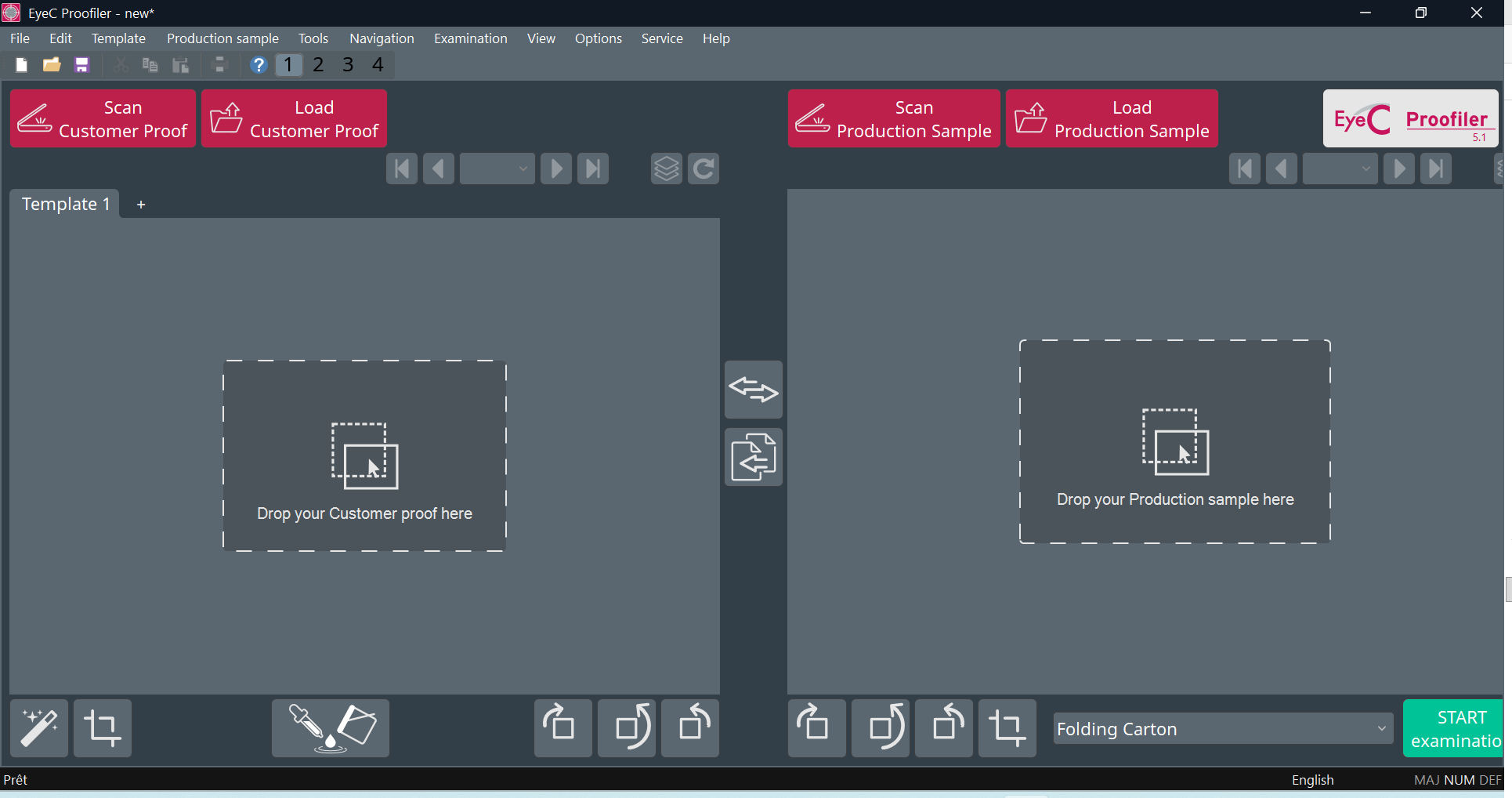
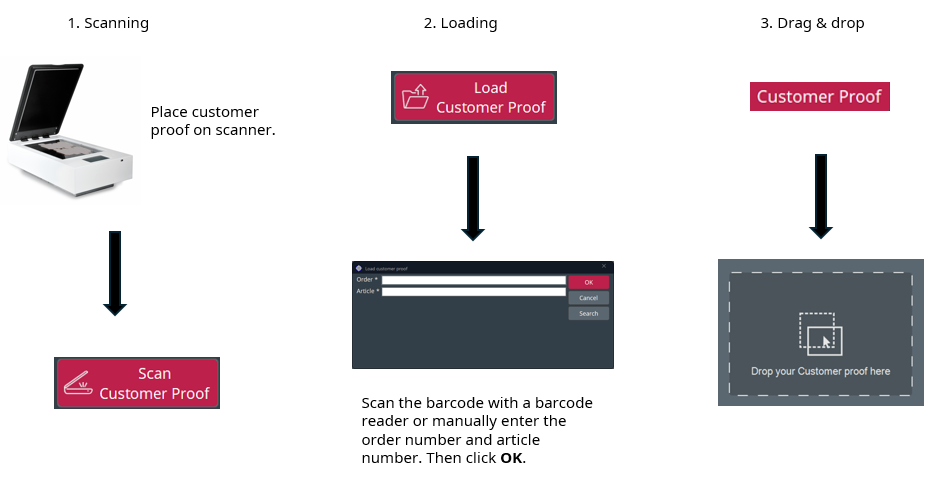
- Scan the customer proof:
-
Place the customer proof on the scanner.
-
If the scanner has a lid, close the lid.
-
Click on Scan Customer Proof in the upper-left corner of the screen.
-
- Load an electronic proof (PDF file or retain sample):
-
Click on Load Customer Proof in the upper part of the screen.
→ The dialog Load Customer Proof appears.
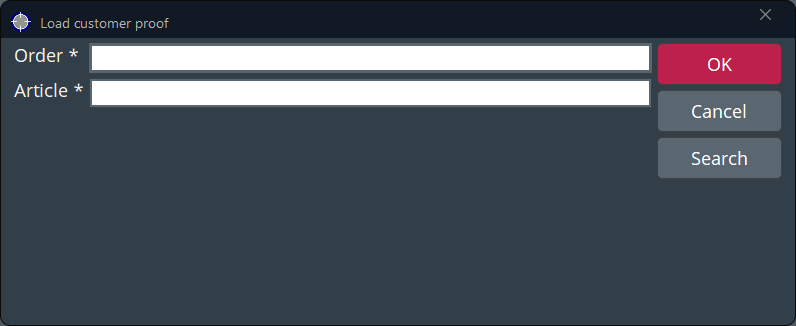
Figure 3. Load customer proof dialog - Enter the order number and the article number and press OK to retrieve your electronic proof.
- Alternatively, to select a proof in the file directory, click on Search.
- Alternatively, scan the barcode with a barcode reader.
-
- Load the customer proof via Drag & Drop.Note:
Make sure to drop the file on the marked area that is displayed slightly enlarged when you hover over it. Otherwise, the file is not dropped, but opened in the browser.
- Choose the file you want to load with your mouse and drop it into the customer proof dropzone.
- → The customer proof is loaded and displayed.